
MFT Slack and Recovering Deleted Files
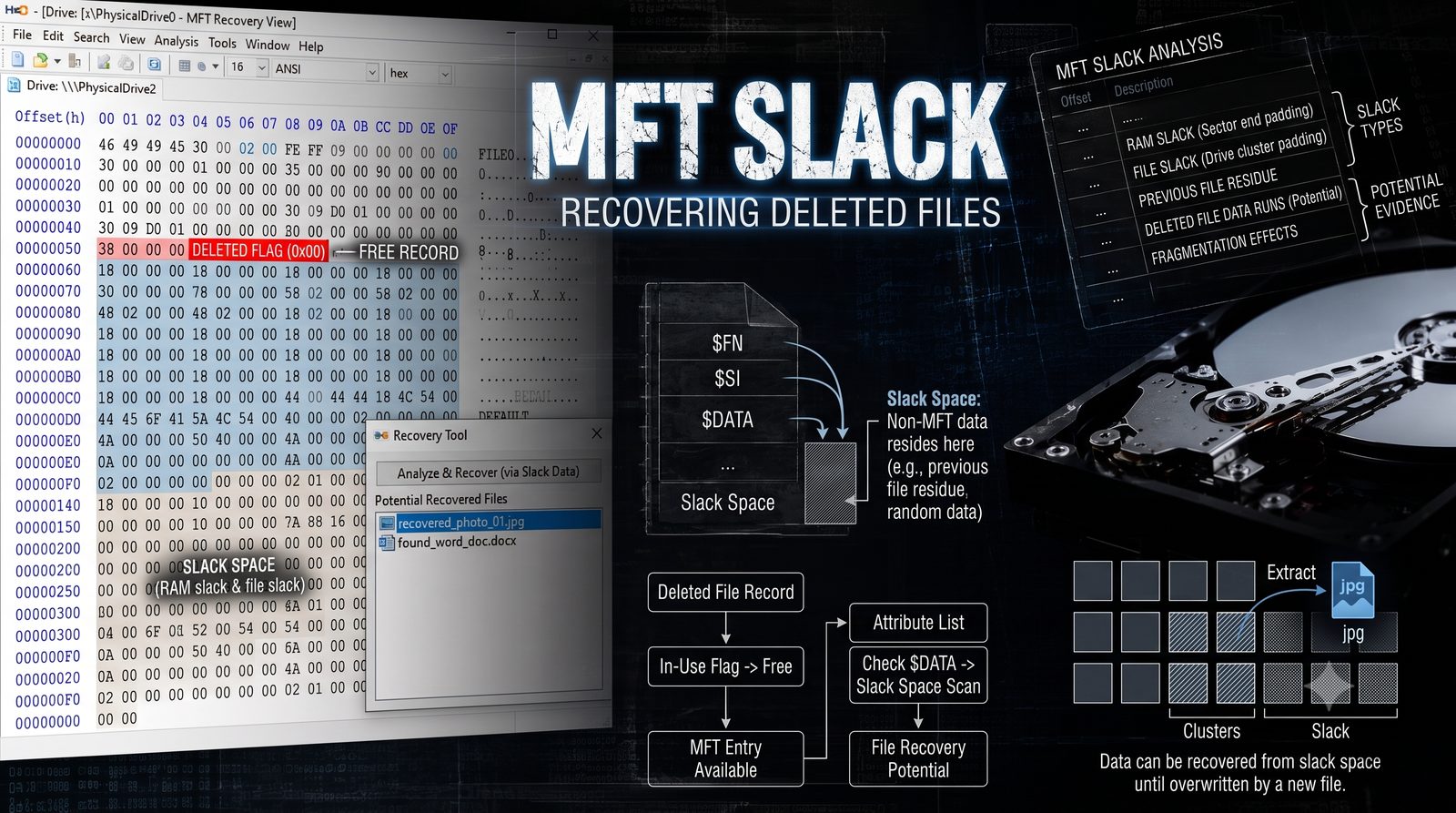
Recovering deleted files requires more than simply scanning a disk for missing data. it requires understanding how NTFS manages file metadata. This article explores MFT record slack, what actually changes when a file is deleted, and how to manually recover resident, non-resident, and fragmented files from raw MFT records.
Overview
Every file stored on an NTFS volume leaves traces within the Master File Table (MFT), and even after deletion, portions of this metadata may remain intact. This article explores the internal structure of the MFT, the organization of its records and attributes, the file deletion process, and how MFT Slack can be analyzed to recover valuable forensic evidence.
Before examining MFT Slack or attempting to recover deleted data, the first step is determining whether an MFT record is currently active or has been marked as deleted.
This is the first check in any deleted-record scan: read 2 bytes at offset 0x16.
Offset 0x16 (2 bytes, little-endian)
bit 0 (0x0001): 1 = record in use, 0 = record not in use (deleted)
bit 1 (0x0002): 1 = directory, 0 = file
| Value | Meaning |
|---|---|
0x00 | Deleted file |
0x01 | Active file |
0x02 | Deleted directory |
0x03 | Active directory |
When you look at offset 0x16, you'll get it. in this case, this is an active file.

MFT Slack Space, in Close
Although a deleted MFT record is marked as available for reuse, not every byte within the record is immediately overwritten. The unused portion of the record, known as MFT Slack, can retain remnants of previous metadata and, in some cases, fragments of file content. These residual artifacts make MFT Slack one of the most valuable areas examined during NTFS forensic analysis.
It exists in two forms:
- Record Slack
- Attribute Slack
Record Slack vs Attribute Slack
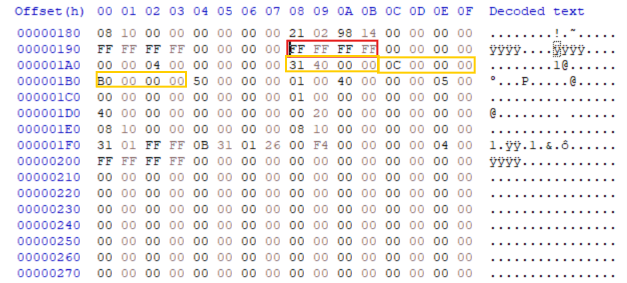
Record Slack: bytes between UsedSize (0x18) and AllocatedSize (0x1C, normally 1024). at the end of the MFT record. Contains: leftover data from previous attributes or older versions of the record.
FF FF FF FFat0x198is the$ENDmarker terminating the attribute list; everything after it up toAllocatedSizeis slack.- The non-zero run starting at
0x1A8(31 40 00 00,0C 00 00 00,B0 00 00 00) reads like fragments of an older, larger attribute header. the value shapes line up with typical attribute length and content offset fields.
Attribute Slack: unused bytes between the logical end of the attribute's content and the allocated space for that attribute. inside an attribute. Contains: leftover bytes from older content within the same attribute (a longer filename or resident DATA).
Deleted Files in NTFS. What Actually Changes
When a file is deleted, Windows does not immediately erase all traces of it. Instead, NTFS updates metadata while leaving portions of the original information intact until they are overwritten. These remnants can provide valuable forensic evidence during an investigation.
When a File Is Deleted
- Leaves the remaining bytes unchanged.
- $MFT Bitmap: the record's allocation bit is cleared (0 = unallocated), marking the slot available for reuse.
- MFT record flags (
0x16): bit 0 cleared →0x00or0x02. - Updates
UsedSizeto reflect the new, smaller logical content. - Parent directory index (
$INDEX_ROOT/$INDEX_ALLOCATION): the directory entry referencing the file is removed. - Link count (
0x12): decremented; reaches 0 when the last hard link is deleted. - $LogFile: records the delete as a transactional log entry.
- $UsnJrnl ($J): appends a
USN_RECORDwithUSN_REASON_FILE_DELETE. - Writes a new
$ENDmarker (0xFFFFFFFF) immediately after the last valid attribute.
These leftover bytes persist until they are overwritten.
What Can Remain in Slack
- Entire
$FILE_NAMEattributes from before a rename - Entire
$STANDARD_INFORMATIONblocks with pre-timestomp timestamps - Resident
$DATAcontent (small files) . potentially full file recovery from slack alone $OBJECT_ID(GUIDs),$SECURITY_DESCRIPTORresidues,$INDEX_ROOTfragments from directories- Fragments of
$ATTRIBUTE_LISTentries referencing extension records - Old sequence numbers, old link counts, old flag bytes. useful for timeline reconstruction
After Record Reuse
- Increments the Sequence Number (offset
0x10) to invalidate stale file references. - Writes new attributes starting at the First Attribute Offset, overwriting only the bytes needed.
- Leaves the remaining bytes unchanged, so older data can survive in the record slack if it is not overwritten.
Recovering Deleted Files
Knowing where the file data resides becomes particularly important when the file is deleted. NTFS treats resident and non-resident files differently, and understanding this behavior explains why certain deleted files can be partially or fully recovered.
In the MFT we have two types of files:
- Resident Files: for small files (roughly under 700 bytes), the actual file content is stored directly inside the MFT record itself.
- Non-Resident Files: for larger files, the attribute holds pointers (data runs) directing to the external disk clusters where the data resides.
Immediately after deletion, the MFT record is mostly unchanged. Only allocation metadata is updated, while the record's attributes remain intact. Recovery quality decreases only as the record is reused.
We will explore how to recover each type of file in the MFT:
- Recovering Resident Files
- Recovering Non-Resident Files
- Recovering Fragmented Files
- Overwritten Records (will recover the new file, not the deleted one)
- Partially Overwritten Records
- Bytes
[0 .. new_UsedSize)belong to the new file. - Bytes
[new_UsedSize .. old_UsedSize_of_prior_content)may still contain fragments of the old file's later attributes (if$STANDARD_INFORMATIONand$FILE_NAMEwere overwritten by the new file's own copies of those same attribute types, but the old$DATAattribute which came after them is still sitting untouched further into the record).
- Bytes
Recovering Resident Files
For small files (roughly under 700 bytes), the actual file content is stored directly inside the MFT record itself.
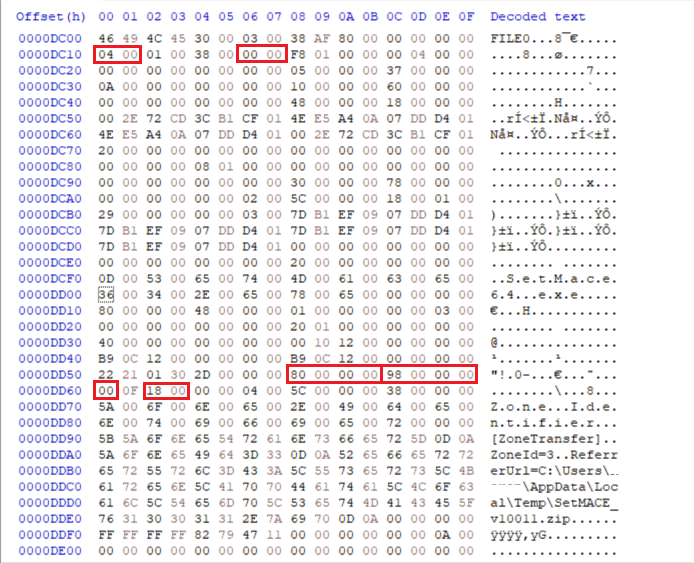
This is a deleted Resident MFT Record, with Flags = 0x0000 (deleted), and the Zone.Identifier ADS starts at 0xDD58. This record contains a $DATA attribute:
- Resident Alternate Data Stream (ADS)
├── $DATA (Named) Resident
│ Type = 80 00 00 00
│ Name = Zone.Identifier
| Offset | Bytes | Meaning |
|---|---|---|
0xDCA8 | 80 00 00 00 | $DATA attribute |
0xDC16 | 00 00 | Flags = 0x0000 (deleted) |
0xDC10 | 04 00 | Sequence Number = 4 this MFT entry has been allocated to four different files over its lifetime. |
0xDD58 | 80 00 00 00 | Attribute Type = $DATA Zone.Identifier ADS begins |
0xDD5C | 98 00 00 00 | Attribute Length = 152 |
0xDD60 | 00 | Resident: 0 = resident (content stored inline in this record), 1 = non-resident (content stored elsewhere on disk, referenced via data runs) |
0xDD62 | 18 00 | Offset (from start of this attribute) where the name string begins, if Name Length > 0 - used to read the stream name, :Zone.Identifier |
Recovering Non-Resident Files
For larger files (above 700 bytes), this attribute holds pointers (data runs) directing to the external disk clusters where the data resides.
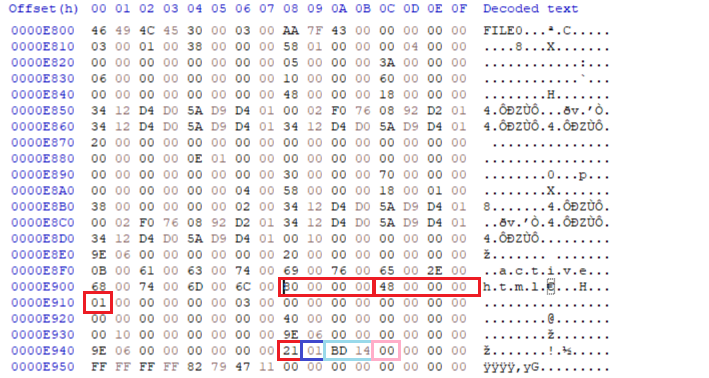
This is the deleted Non-Resident MFT (Non-resident Flag = 0x01), indicating that the file content is stored outside the MFT record. Rather than containing the file itself, the attribute stores a run list describing the physical disk location of the data.
- Let's walk through an example to understand it better.
- Now suppose the file is thrwt.txt, the MFT record does NOT
contain it. Instead it contains something like:

$DATA
Run List

LCN = 5309
Length = 1 cluster

That's all.
Think of it as a note saying:

"The file is over there."
So to find the non-resident data, Windows looks at Run List Offset = 0x40.
0x40 (64) → abs 0xE908 + 0x40 = 0xE948
So it jumps to 0xE948 where it finds 21 01 BD 14 00 - these five bytes are not file data, they are an address.
Then decode the run list byte 21.
Split into nibbles: 2 | 1, meaning:
- Length field = 1 byte. Run Length to next byte
01means1 cluster.
- Offset field = 2 bytes. Run Offset to next two bytes
BD 14, which in little-endian is14 BD, equal to0x14BD=5309. Since this is the first run, Starting LCN =5309.
The final byte is the terminator 00, marking the end of the run list.
The decoded run list means:
Read 1 cluster
starting at LCN 5309

MFT Record
│
├── $DATA (Non-resident)
│
└── Run List
      │
      ▼
LCN 5309
+----------------------+
|                      |
|   File Data          |
|                      |
|                      |
+----------------------+
Recovering Fragmented Files
A fragmented file consists of multiple non-contiguous data runs.
The MFT still does not contain the file. It contains a map telling Windows where each piece of the file is located.
Suppose the file is

thrwt.exe

The MFT record does NOT contain
<installer data>

Instead it contains something like:

$DATA
Run List, Run 1, Run 2, Run 3
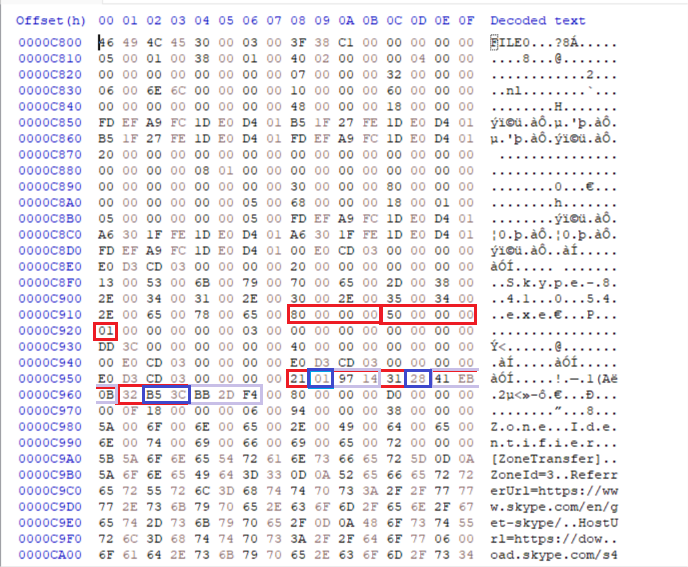
First Windows locates the run list: Run List Offset = 0x40. The attribute begins at 0xC918 + 0x40 = 0xC958.
Where it finds:
21 01 97 14
31 28 41 EB 0B
32 B5 3C BB 2D F4
00
These bytes are not the file data - they are simply a map describing where each fragment of the file is stored.
Decode Run #1 (same steps as a non-resident file, but with more runs)
21 01 97 14
Decode the run list byte 21. Split into nibbles: 2 | 1, meaning:
- Length field = 1 byte. Run Length to next byte
01means1 cluster.
- Offset field = 2 bytes. Run Offset to next two bytes
97 14, which in little-endian is14 97, equal to0x1497 = 5271. Since this is the first run, Starting LCN =5271.
Repeat the same steps for each data run and you'll recover the fragmented file.
Run 1 21 01 97 14
LCN = 5271
Length = 1 cluster
Run 2 31 28 41 EB 0B
LCN = 786392
Length = 40 clusters
Run 3 32 B5 3C BB 2D F4
LCN = 11667
Length = 15541 clusters
So: read 1 cluster starting at LCN 5271, then 40 clusters starting at LCN 786392, then 15,541 clusters starting at LCN 11667, and concatenate them in this order to reconstruct thrwt.exe . and that's the end.
Yeah. this is the story. You're the one able to recover data without any tool.
If you feel distracted, you can read this first: MFT
Thx for reading geeks